
Adding Content to DropDown Lists |

|

|

|

|
||
Adding Content to DropDown Lists |
|
|
|

|

|
Adding Content to DropDown Lists |
|
|
|
|
||
Adding Content to DropDown Lists |
|
|
|
|
|
|
|
||
Pathagoras provides a very simple method to add new text into the Drop Down List. (Actually you are not adding text to the List so much as you are adding content to the source folder or glossary that the list represents. See notes below illustrations.)
You can add clauses to a folder or glossary represented by an existing DropDown List using the list itself. Here are the steps.
| • | If the entire document on your editing screen is what you want to add, simply click the «Save Text to Folder» (if the DropDown List is a folder) or «Save Text to Glossary» (if it is a glossary). See figures below. |
| • | If you want only a piece of the active document to be added to the List, highlight with your cursor the portion you want and then click «Save Text to Folder» or «Save Text to Glossary», as appropriate. |
| • | Pathagoras does the rest. Provide a name and a subject and you are done! |
| • | Don't worry about 'Folder' vs. 'Glossary.' Pathagoras knows which is which, and will only display the proper option based on the source of the List. |
| • | There is absolutely no navigation required on your part, and you don't have to «Refresh» the List after you make an entry. |
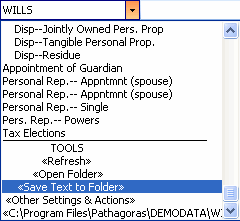

Adding text to folder (left) or to a glossary (right) can be done with Point & Click simplicity.
 To further illustrate the elegance of this feature, we propose the following exercise:
1. Create a DropDown List for a folder to which you intend to add text (we'll call this the 'incomplete folder').
2. Display a document that contains some text that you want to add to the 'incomplete folder.'
3. Highlight the text you want to move into the folder. Click the«Save Doc to Folder» entry in the DropDown List.
4. Repeat.
 We emphasize that when you 'add content' to a DropDown List, you are actually adding the content to the folder or glossary that the Drop Down List represents. The new content is placed into the source folder or glossary, and it is there for all document assembly purposes. Therefore, if you look at the source folder or glossary (maybe by clicking «Open Folder» or «Open Glossary») you will see your addition there. If you perform a 'standard' document assembly routine, the new term(s) will appear in the Clause Selection Screen.
Note: As an alternative to the above, you can directly add documents to the folder (or new terms to the glossary) using any of the other methods that Pathagoras or Word make available. Click here for a comprehensive list of all 'add content' tools. However, if you use one of the alternative methods, you should click «Refresh» to update the content in the DropDown List.